
With Azure Databricks, users can build and operationalize Machine Learning models in real-time with Structured Streaming. Let’s say you built and trained a credit card fraud detection model in Databricks and you are ingesting daily batches of credit card transactions and monitoring for fraudulent charges. You could set it up so that you just write any fraudulent charges to a SQL Database where fraud analysts will analyze the newly written fraud data to alert customers.
Or, you can do all of it in real-time.
In Azure Databricks, you can ingest and process data from an Azure Event Hub, but you can also use Azure Event Hubs as an output.
Let’s see how this is done… (In a hurry? Here is the GitHub Repository)
Prerequisites:
- Azure Subscription
- Azure Databricks Workspace
- A Cluster with Azure Event Hubs Spark Connector
- If you need help installing follow these instructions
- A Cluster with Azure Event Hubs Spark Connector
- Azure Event Hub Namespace
- Event Hub named “ingestion”
- Event Hub named “alerting”
- Azure Logic App
- An Email Account (Outlook, Gmail are the easiest ones to do this with)
The Scenario
You are a grocery store chain and you want to identify anomalous habits of your shoppers. There is one item in particular that you want to monitor for: cough syrup. Your CEO is hell-bent on preventing the next wannabe Walter White from using your store’s supply of cough syrup to start up their meth labs.
Therefore, any purchase of more than 10 bottles of cough syrup needs to be flagged.
Step 1: Set up the readStream event
# Event Hub Namespace Name
NAMESPACE_NAME = ""
# Key Value for the RootManageSharedAccessKey or the key at the namespace level you created and chose to use for this
KEY_VALUE = ""

# The connection string to your Event Hubs Namespace
connectionString = "Endpoint=sb://{0}.servicebus.windows.net/;SharedAccessKeyName=RootManageSharedAccessKey;SharedAccessKey={1};EntityPath=ingestion".format(NAMESPACE_NAME, KEY_VALUE)

# Event Hubs Connection Configuration
ehConf = {
  'eventhubs.connectionString' : connectionString
}

productsSoldStream = spark \
  .readStream \
  .format("eventhubs") \
  .options(**ehConf) \
  .load()
The first part is simply creating a Python dictionary to hold the connection string for the ingestion Event Hub (this refers to the Event Hub you deployed called ingestion, see Prerequisites). You get the connection string from the Namespace level of the Event Hub and then you add on “;EntityPath=” + “name_of_your_event_hub” and in this case it would be ingestion making it: “;EntityPath=ingestion”.
The second part is the actual readStream object which establishes the streaming DataFrame. The first two parts, “spark” and “readStream,” are pretty obvious but you will also need “format(‘eventhubs’)” to tell Spark that you are ingesting data from the Azure Event Hub and you will need to use “options(**ehConf)” to tell Spark to use the connection string you provided above via the Python dictionary ehConf.
So, now we have the ability to read data from an Event Hub in Spark. However, we sort of need data to be streamed to that Event Hub or this demo becomes pretty boring. Let’s set up our simple streaming application.
Step 2: Set up the “anomaly” generator
Now, I don’t have an anomaly detection machine learning model or a real stream of data available to me, but I do know how to fake it with a simple Python script. For our streaming application we are going to adapt a code sample from Microsoft’s documentation for using a Python application to send data to an Event Hub (Note: the sample uses azure.servicebus==0.21.1).
The full code for this sender.py application that I will use can be found here at the GitHub repository for this blog post.
In the Python script, make sure you fill out the NAMESPACE_NAME and KEY_VALUE to ensure that the script connects to your Event Hub.
Step 3: Set up the “anomaly” detection and alerting in Databricks
First, we need to write a query for the Structured Streaming job that will be filtering the real time stream of data from the sender.py script for the “anomalous” message — a “purchase” of 10 or more bottles of cough syrup.
# When data is streamed into the Event Hub and Spark reads it, the message body will be stored as binary data
# We need to cast the binary data as a string to get the contents of the message
GetMessageData = productsSoldStream.select(productsSoldStream.body.cast("string").alias("body"))

# Here we import some necessary libraries
from pyspark.sql.functions import *
from pyspark.sql.types import *

# Here we establish our schema for the incoming JSON messages
schema = StructType([
  StructField("storeId", IntegerType(), True),
  StructField('productid', IntegerType(), True),
  StructField("timestamp", TimestampType(), True),
  StructField("name", StringType(), True),
  StructField("category", StringType(), True),
  StructField("price", DecimalType(18,8), True),
  StructField("quantity", IntegerType(), True)
])

# From the string representation of the message contents we extract the JSON structure using the schema defined above and the from_json() function
FilterForCoughSyrupTransactions = GetMessageData.select(from_json("body", schema=schema).alias("body")) \
                                                .where("body.productid == 14") \
                                                .where("body.quantity > 10")
Now that we have set up a streaming DataFrame, FilterForCoughSyrupTransactions, we can write the results of this DataFrame to the alerting Event Hub in your Event Hub Namespace in Azure.
We need to set up the writeStream event to do this:
# The connection string to your Event Hubs Namespace
connectionStringAlerting = "Endpoint=sb://{0}.servicebus.windows.net/;SharedAccessKeyName=RootManageSharedAccessKey;SharedAccessKey={1};EntityPath=alerting".format(NAMESPACE_NAME, KEY_VALUE)

# Event Hubs Connection Configuration
ehConfAlerting = {
  'eventhubs.connectionString' : connectionStringAlerting
}


FilterForCoughSyrupTransactions.select(FilterForCoughSyrupTransactions.body.cast("string")).writeStream \ # Cast the filtered transactions to strings
                  .format("eventhubs") \ # write to event hubs as the sink
                  .options(**ehConfAlerting) \ # configuration for the 'alerting' Event Hub
                  .option("checkpointLocation", "/streamingDataDemos/demo/checkpoints") \ # Location for the checkpoints
                  .start()
The important items of the writeStream event is the select() action and the checkpointLocation option.
We select and cast the body back as a string because the Event Hub requires the body of the messages it receives to be either in a binary or string format.
We specify a checkpoint location for Spark to store the Write-Ahead-Logs and other checkpoint related files so that the cluster keeps its place in the stream of data. This way if there is a failure it can just pick up where it left off.
Step 4: Set Up the Logic App for the Email Alerts
We will use Azure Logic Apps to trigger an email message to send with the flagged transaction information. A guide on how to set this up can be found here.
Start the Python script, the Databricks notebook, and see the Results!
Make sure to first start the python script by running it on your local machine. Then run the notebook with the code from the above snippets and make sure your Logic App is enabled.
The Results
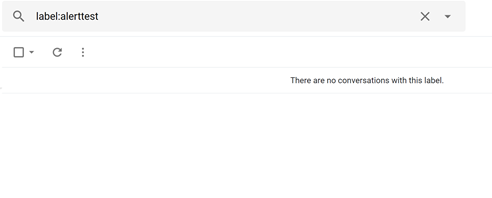
Here we see the empty folder where the messages will arrive based on a filter rule in Gmail.
Here is the triggered Email activity in the Logic App.
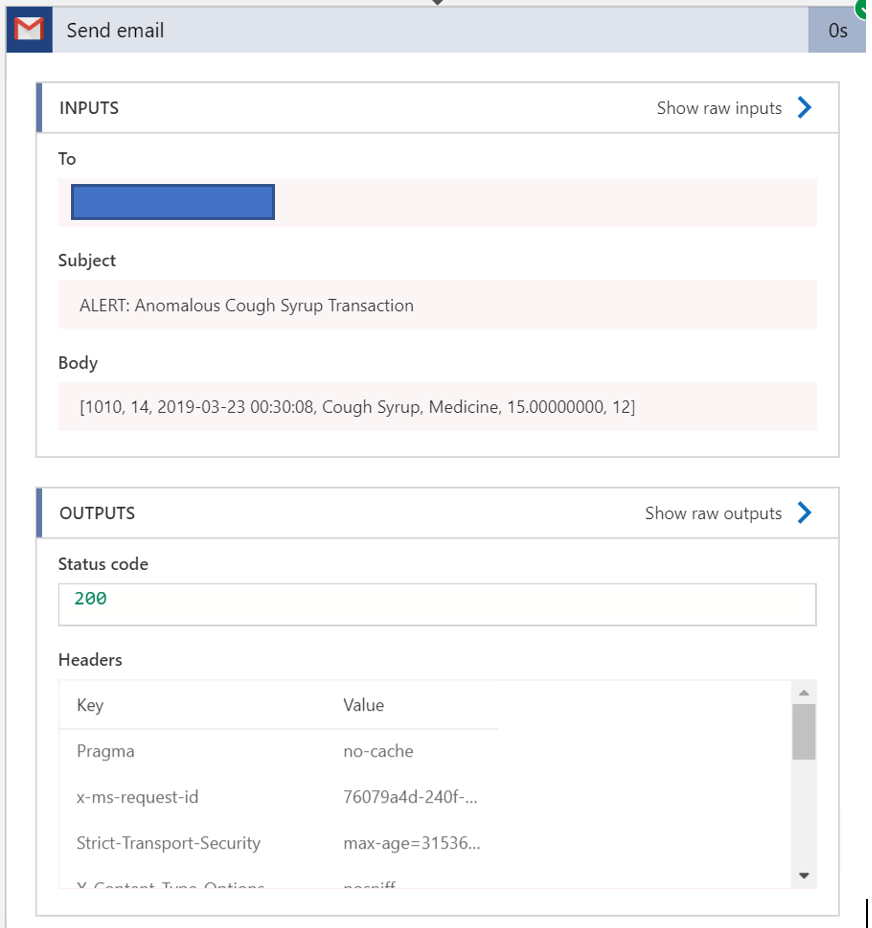
Here is that exact message showing up as an anomalous transaction.

Ending Thoughts
Remember, all the code for this demo can be found here on the GitHub repository associated with this demo.
This particular demo could be adapted for many things. Maybe you are processing streams of data in an ETL pipeline and you want to know when there are invalid data points being streamed. You could set up something similar to let you know in real-time when these issues are happening.
There is so much you can do with Databricks and I hope this has alerted you to some fascinating options.
 Code Minus Tears